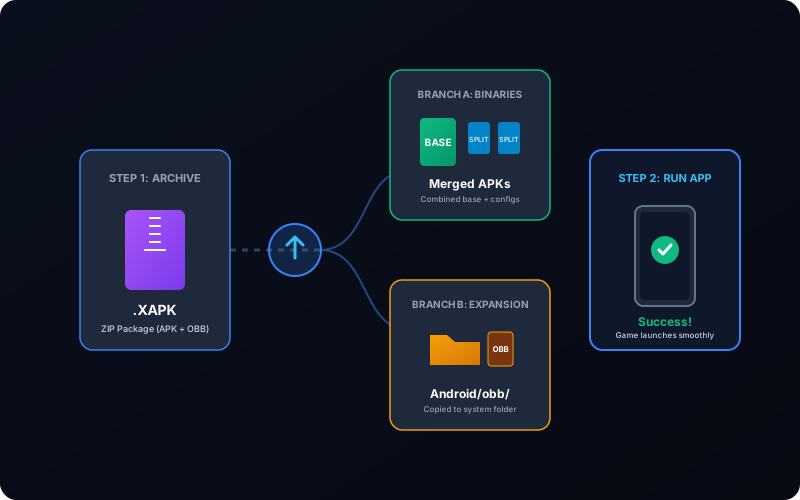
XAPK is a container format that often includes APK binaries plus expansion assets. Many install failures happen because users treat XAPK like a single APK. This guide explains a stable, repeatable installation flow for Android 11 to Android 14.
On this page
Step 1. Validate Input Before Installing
- Confirm extension is actually
.xapk(not renamed zip). - Ensure file size is complete (interrupted downloads often fail install).
- Keep at least 2x archive size free in internal storage.
Corrupted or incomplete archives are the fastest way to trigger generic install errors.
Step 2. Convert XAPK to Installable APK
Use the canonical converter flow: Convert XAPK/APKM/APKS to APK.
- Upload the XAPK file.
- Wait for extraction and package merge.
- Download the generated APK output.
If source archive is split-heavy, conversion may include dependency checks that prevent incomplete output.
Step 3. Install APK on Android Correctly
- Open your file manager and tap the converted APK.
- When prompted, allow "Install unknown apps" for that app only.
- Complete installer flow and launch app once installation finishes.
If install fails immediately, check App Not Installed troubleshooting.
Step 4. Handle OBB Assets (When Required)
Some games need expansion assets to run even after APK installs successfully. If app opens then crashes or requests missing data:
- Verify archive originally included OBB data.
- Follow OBB setup guide: What Is an OBB File and How to Install It.
- Avoid mixing OBB from different app versions.
Step 5. Bundle-Based Packages: APKM and APKS
If your source is not XAPK but bundle archives, use the same canonical converter page. Android installer cannot consume many bundle archives directly without proper merge.
Step 6. Compatibility Checks Before Retrying
| Check | Why It Matters | Quick Action |
|---|---|---|
| ABI architecture | Wrong CPU build will not install or run | Analyze package and verify ARM64 / armeabi-v7a / x86 compatibility |
| Android API support | Old targets can be blocked on new policies | Check minSdk/targetSdk before install |
| Signature validity | Invalid signing blocks installation | Re-sign output if needed |
| Storage headroom | Extraction and install need temporary space | Free storage and retry from internal memory |
Step 7. Security and Source Hygiene
- Download only from trusted sources with reproducible checksums when available.
- Do not disable major Android security controls globally.
- Use unknown-source permission only for the installer app currently in use.
Common Failure Scenarios and Fix Path
- Install stops at 0%: likely signature or package conflict.
- Installed but crashes on launch: usually missing OBB/splits or ABI mismatch.
- Works on one phone, fails on another: architecture/API difference.
Resolve root cause before retrying repeated installs. Repeated blind retries usually do not help.