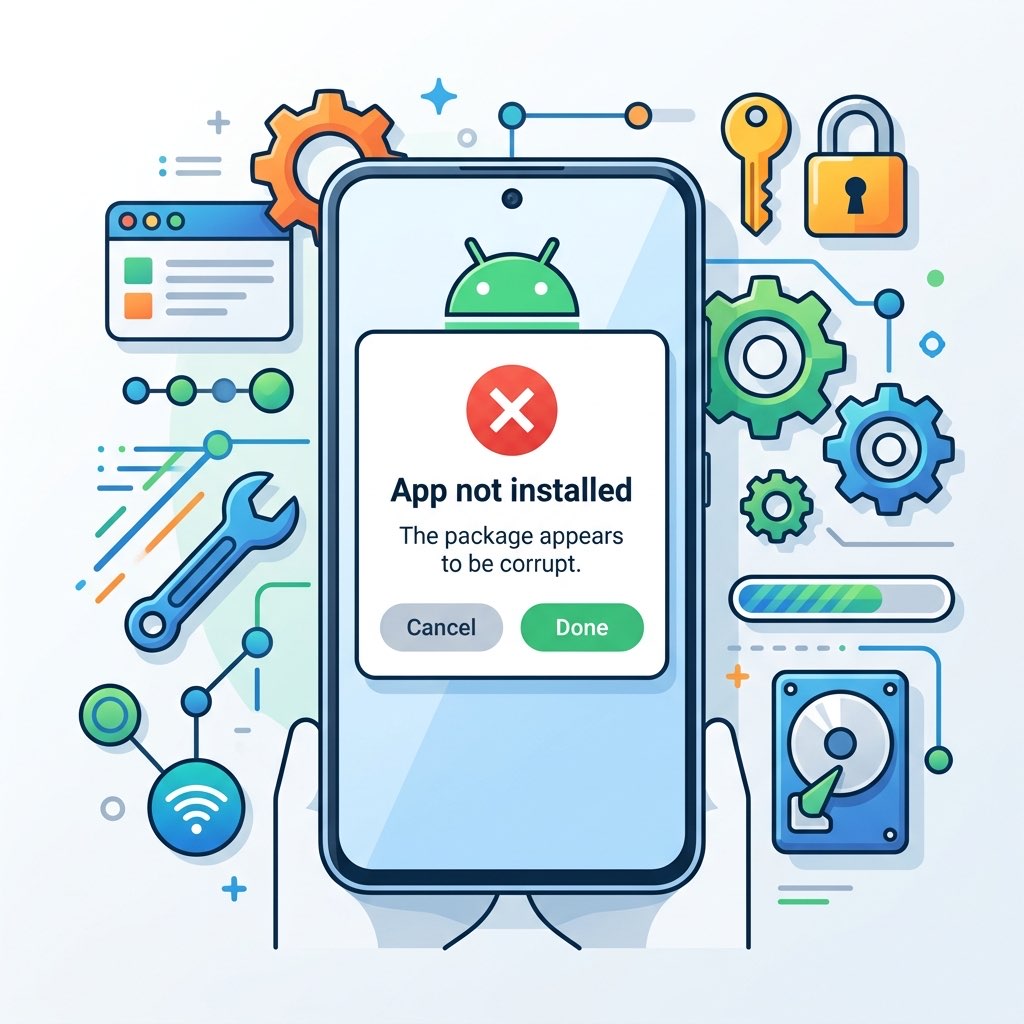
The "App not installed" error is a generic Android failure message. It can mean signature mismatch, split package mismatch, ABI incompatibility, low storage during extraction, or policy blocks (Play Protect / target SDK restrictions). This guide gives a practical troubleshooting flow that works for most devices on Android 11 to Android 14.
On this page
1. Fast Triage Checklist (Do This First)
- Confirm the package type. If input is
.xapk,.apkm, or.apks, convert it before installing. - Check if another version of the same app is already installed.
- Verify free storage (safe minimum: at least 2x APK size).
- Confirm Android version and CPU architecture compatibility.
- If package is unsigned or test-signed, re-sign before install.
If the install still fails, follow the sections below in order. Do not skip the signature checks.
2. Package Type Mistake Is the Most Common Cause
Android package installer expects a valid installable APK. Many users try installing archive formats directly. If your file came from third-party distribution, it may be a container that includes split modules and extra assets.
- XAPK: usually APK + OBB / split assets
- APKM: bundle-oriented package with multiple split modules
- APKS: archive of split APK set
Convert these to installable APK first using Convert XAPK/APKM/APKS to APK.
3. Signature Conflict and Existing App Collision
If the same package name is already installed with another certificate, Android rejects the new APK even if version code looks correct. This is the classic "signature mismatch" case.
- Go to app settings and uninstall the existing app version.
- Install the new APK again.
- If you must keep app data, only update with APK signed by the same original certificate.
For repackaged or modified builds, run signing again to produce a consistent output before installation.
4. Split APK and Missing Module Problems
Some apps require multiple splits (base + config ABI + config language + screen density). Installing only one split or converting incorrectly causes install failure or immediate crash.
- Ensure source bundle is complete (not partially downloaded).
- If using split files, include all required parts, especially
base.apk. - Re-convert from the original archive instead of mixing files from different sources.
5. ABI, SDK, and Platform Compatibility
An APK may be valid but still not compatible with your device architecture or Android API level. Typical failures include installing an ARM64 build on x86 emulator, or trying old target SDK packages on newer policy-restricted devices.
Use the Analyze tab to confirm:
- minSdk: your device must be equal or higher
- targetSdk: some very old targets can be blocked on new Android builds
- native-code / ABI: must match your device CPU architecture
6. Storage, File Corruption, and Transfer Issues
Damaged files and low storage create misleading install errors. Verify SHA-256 when possible and avoid renaming extensions manually.
- Re-download the original archive.
- Move the file to internal storage (avoid unstable external SD paths).
- Free storage and retry installation.
- Avoid editing package internals unless required.
7. Security Policy Blocks (Play Protect / Unknown Sources)
On modern Android, policy prompts can silently stop installation flow. Check installer permissions and security prompts:
- Allow "Install unknown apps" for the exact app doing installation (browser or file manager).
- Review Play Protect warnings and source trust before proceeding.
- If device is managed (work profile / MDM), sideload may be blocked by admin policy.
8. Symptom-to-Fix Table
| Observed Symptom | Most Likely Cause | Action |
|---|---|---|
| Fails immediately after tapping Install | Signature mismatch with installed app | Uninstall old version or use matching signer |
| "Package appears invalid" | Corrupt APK or incomplete split set | Re-download and re-convert from full archive |
| Works on one phone but fails on another | ABI / SDK incompatibility | Analyze metadata and use compatible build |
| Install starts then stops with no detail | Storage or policy restriction | Free storage and check installer permissions |
9. Recommended Safe Workflow
- Analyze package metadata first.
- Convert archive formats to APK with a complete input set.
- Sign output if certificate validity is uncertain.
- Install on compatible device with enough storage.
- If still failing, capture exact error text and retry with clean source file.