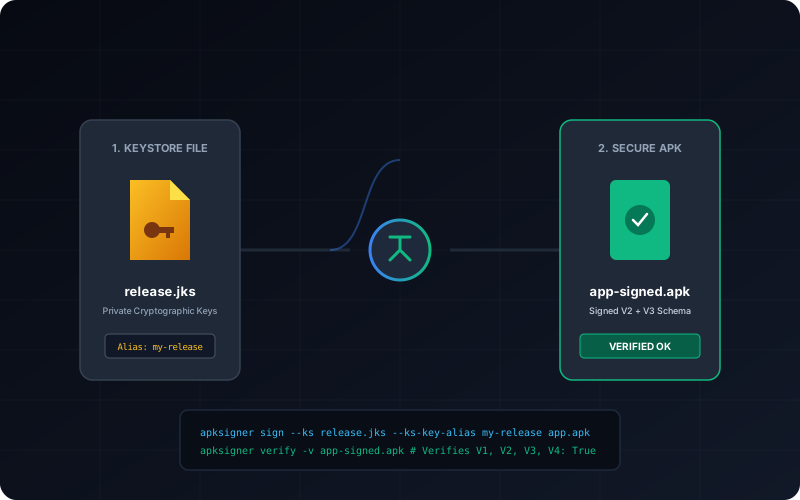
For any Android developer, the transition from "Debug" to "Release" is marked by a single, critical cryptographic file: the **Keystore**. While Android Studio makes the initial signing process relatively straightforward, there are many scenarios where you need to re-sign an app manually or online using a specialized tool. Whether you're a modder ensuring binary integrity or a developer performing an emergency update from a remote device, knowing how to handle **.jks** and **.keystore** files is an essential skill. In this technical guide, we break down the architecture of the Android Keystore system and provide a step-by-step tutorial on how to use our online signer with your private certificates.
Inside the Tutorial
- What is an Android Keystore? (.jks vs .keystore)
- The Trinity: Keystore, Key Alias, and Passwords
- Why use a Custom Keystore vs. Default Sign?
- Step-by-Step Tutorial: Online Custom APK Signing
- Common Signing Errors: "Alias not found" and Password Mismatches
- Security First: Protecting your Private Key
- Frequently Asked Questions
1. What is an Android Keystore?
A keystore is a secure binary file that acts as a "vault" for your digital certificates and private keys. In the Android world, it typically comes in two flavors:
- .jks (Java KeyStore): The standard format used by the Java Development Kit (JDK) and Android Studio for several years now.
- .keystore: An older, similar format often generated by manual `keytool` commands in some legacy IDE environments.
Crucially, a single keystore file can contain **multiple** keys. This is why you must specify a unique "Alias" every time you use one.
2. The Trinity: Keystore, Key Alias, and Passwords
When you use a custom signing tool, you must provide three distinct pieces of information. If one is wrong, the signing process fails:
- The Keystore Password: This is the "Door Key" that lets the software open the .jks file.
- The Key Alias: This is the "Name" of the specific identity inside the vault you want to use (e.g., `release_key`).
- The Key Password (Optional): Some developers use a *second* password for the specific key itself, separate from the main vault password. If you didn't set one, it is usually identical to the Keystore password.
3. Why use a Custom Keystore vs. Default Sign?
Most simple APK signers use a generic "Test" or "AOSP" key. While this makes the app installable, it has severe limitations:
- Play Store Rejection: You cannot upload an app to Google Play signed with a generic key.
- Inability to Update: If you use a generic key, your users can never cleanly "Update" to the next version you release. Every update will require an un-install first.
- Identity Spoofing: A custom signature is your unique brand on the file system. It proves that *you*—and only you—authorized this specific binary.
4. Step-by-Step Tutorial: Online Custom APK Signing
If you have your .jks file and need to sign an APK using the XapkTool web interface, follow these steps:
Step 1: Upload the APK
Drop your unsigned or modded APK into our "Sign APK" tab. The system will detect if it's currently unsigned.
Step 2: Enable "Use Custom Keystore"
Check the box labeled "Use Custom Keystore (.jks/.keystore)." A new form will appear below the drop zone.
Step 3: Upload your JKS File
Click "Upload Keystore" and select your private `.jks` or `.keystore` file from your device storage.
Step 4: Enter Your Credentials
Enter the exactly matched **Keystore Password**, **Key Alias**, and **Key Password**. **Note:** Our tool performs the signing in the background using a secure worker thread; your passwords are only used for the duration of the signing session and are never logged or stored on our servers.
Step 5: Sign & Download
Click "Sign APK." After a few seconds, the tool will provide a download link for the newly signed binary. You can verify it by checking the SHA-1 fingerprint in our **APK Analyzer**.
5. Common Signing Errors
| Error Message | Resolution |
|---|---|
| Failed to load keystore: (Invalid password) | Double-check that you haven't included any extra spaces or special characters that were not in the original creation command. |
| Alias [name] does not exist | Check for case-sensitivity. An alias named `Release` is different from `release`. Use keytool -list -keystore your.jks to see the exact names. |
| Illegal key size | This often happens with older Java toolchains trying to use 2048-bit or 4096-bit keys. Ensure your JKS was created using the modern PKCS12 format. |
6. Security First: Protecting your Private Key
If someone steals your .jks file and your password, they can "impersonate" you. They could release a malicious update to your app, and your users' phones would trust it implicitly. Here is how to stay safe:
- Never commit JKS files to public Git: This is the #1 way developer accounts are compromised.
- Use a Password Manager: Store your alias name and long, complex passwords in an encrypted vault like Bitwarden or 1Password.
- Backup the Backup: Keep your JKS in two separate, offline locations (e.g., an encrypted USB drive). If you lose this file, you lose the ability to update your apps on Google Play forever.
7. Frequently Asked Questions
Can I convert a .jks to a .pem key?
Yes. Using the keytool -importkeystore command, you can export your private key into a standard PEM or PKCS12 format, which is required for some specialized cloud hosting platforms.
Does XapkTool store my Keystore?
No. Your uploaded `.jks` file is processed in a temporary, isolated worker environment and is purged the moment the signing operation finishes or the session expires.
How do I create a new JKS for free?
The best way is to use Android Studio’s "Build → Generate Signed Bundle / APK" wizard. If you don't have AS, you can use the command-line keytool -genkeypair command that comes with the JDK.