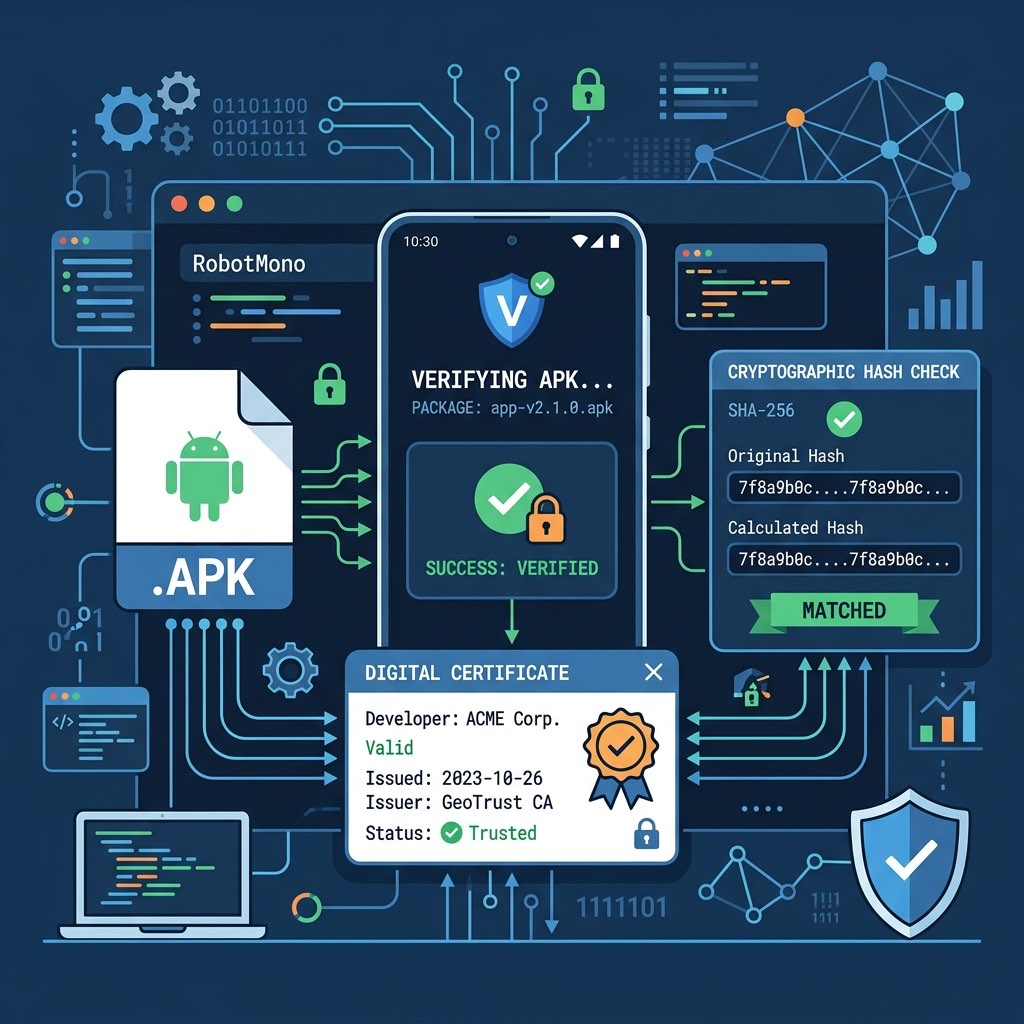
Ensuring the integrity of an Android application package (APK) is the cornerstone of mobile security. When you install an app on your device, Android doesn't just look at the code—it rigorously checks a cryptographic signature to verify that the file hasn't been tampered with since it left the developer's hands. In this exhaustive guide, we explore the mechanics of Android package integrity, the evolution of signature schemes from v1 to v4, and practical methods to verify these signatures yourself.
In this technical guide
1. Why Package Integrity Matters for Android Users
In the world of Android apps, integrity means that the APK's contents—its code, resources, and manifest—match exactly what the developer intended. If a single byte is changed, the integrity is compromised. This is vital for three main reasons:
- Prevention of Malware Injection: Attackers often download popular APKs, inject malicious code (like keyloggers or ransomware), and re-distribute them. Signature verification blocks these tampered files from being installed as an update to the original app.
- Secure Updates: Android uses the signature to identify the developer. This allows "seamless" updates where an app can replace itself while maintaining its existing data locally.
- Data Protection: If an app with a different signature tries to claim the package name of an existing app, Android prevents the installation to ensure the new app can't access the private data of the old one.
2. How Android Digital Signatures Work
Android uses asymmetric cryptography to sign apps. A developer creates a private key (which they keep secret) and a public certificate (which is included in the APK). During the signing process, the developer's tools generate a hash (a digital fingerprint) of the app's contents and encrypt that hash with the private key.
When you install the app, the Android system uses the public certificate to decrypt the hash and then compares it to a freshly calculated hash of the installed file. If they match, the app is "verified."
3. The Evolution: Signature Schemes v1, v2, v3, and v4
As Android matured, Google introduced more robust and efficient signing methods to handle larger apps and better security threats.
v1: JAR Signing (Legacy)
Introduced with the very first version of Android, v1 signing is based on the Java JAR signing format. It signs the individual files within the APK (which is just a ZIP file). The problem? The system has to unzip and read every single file to verify the signature, which is slow and allows certain types of "zip-based" modifications to the APK structure without breaking the signature.
v2: APK Signature Scheme v2 (Fast Verification)
Introduced in Android 7.0 (Nougat), v2 signing treats the entire APK file as a single binary blob. It inserts a "Signature Block" into the APK. This is significantly faster because the system doesn't need to unzip the file to check integrity. If even a tiny change is made to the APK file after signing, the v2 check fails immediately.
v3: APK Signature Scheme v3 (Key Rotation)
Android 9.0 (Pie) brought v3 signing, which is similar to v2 but adds Key Rotation. This allows a developer to "proof-of-rotation" a new key using their old one, which is essential if a developer's original private key is compromised or if they need to change it for administrative reasons.
v4: APK Signature Scheme v4 (Streaming/Incremental)
With Android 11, Google introduced v4 signing to support **Incremental Installation**. This allows the device to start running an app while it's still being downloaded. v4 stores the signature in a separate file (usually `.apk.idsig`) and uses a specialized hash tree (Merkle tree) to verify the app's contents as they are streamed to the device.
4. How to Verify Signatures Manually (Step-by-Step)
If you have downloaded an APK from an unofficial source, it is highly recommended to verify its signature before installation. Here are three ways to do it:
Method A: Using our Online APK Analyzer
The easiest way is to use our tool on the homepage. Simply drop your APK, and our system will extract the "Basic Info" section, which includes the Signer Certificate MD5/SHA-1 fingerprints. You can compare these fingerprints to known official values from sites like APKMirror or official developer blogs.
Method B: Using the 'apksigner' tool (Technical)
If you have the Android SDK installed, you can use the command-line tool apksigner. This is the most accurate way used by professional developers.
apksigner verify --verbose --print-certs path/to/your_app.apkLook for "Verified using v1/v2/v3/v4 scheme: true". If any of these are true and no errors are shown, the file is structurally intact.
Method C: Using 'keytool' (No SDK required)
If you have Java (JDK) installed, you can use keytool to see the certificate information without even needing the Android SDK:
keytool -printcert -jarfile your_app.apk5. Fixing Signature Mismatch and Integrity Errors
The most common error users face is "App not installed as package appears to be invalid" or "Signature mismatch". Here is how to troubleshoot them:
| Error Message | Potential Cause | Resolution |
|---|---|---|
| Signature Mismatch | The new APK is signed with a different key than the version already on your phone. | Uninstall the old version first (be sure to backup data) then install the new one. | Package Invalid (v2/v3 failure) | The file was modified (modded) after signing or was corrupted during download. | Re-download the APK from a trusted source or re-sign it using our Sign APK tool. |
| v4 Signature Missing | Incemental install failed because the required `.idsig` file is missing. | Ensure you have the accompanying `.idsig` file or use a standard (non-incremental) install method. |
6. Security Best Practices for Users
To stay safe while sideloading apps, follow these simple rules:
- Always compare hashes: If a source provides SHA-256 hashes, verify them locally using
certutil -hashfile app.apk SHA256(Windows) orshasum -a 256 app.apk(macOS/Linux). - Check the Signer: If an app claiming to be from "Google" is signed by a certificate you don't recognize, do not install it.
- Keep Play Protect Enabled: Google Play Protect performs its own signature and behavioral analysis in the background.
- Use a dedicated Sandbox: If you are testing suspicious APKs, use a work profile (like the Island or Insular apps) or a separate user account on your device.
FAQ: Frequently Asked Questions
Can I change an app's signature?
Yes, you can "re-sign" an app, but this will break its connection to the original developer. You will not be able to receive official updates, and you must uninstall the original version before installing your re-signed version.
Does XAPK conversion affect the signature?
No. When our tool converts XAPK/APKM to APK, it extracts the original signed components. As long as the base APK and its splits are not modified internally, the original signature remains valid.
Is v1 signing still necessary?
Yes, for compatibility with Android versions older than 7.0. Modern developers typically sign with v1, v2, and v3 simultaneously to ensure maximum compatibility and security.