Have you ever wanted to share an app that's no longer available on the Play Store? Or maybe you're a developer who needs to analyze how a certain application is structured? Extracting the binary APK (Android Package) file from a device where it's already installed is a fundamental skill for Android power users. In this exhaustive guide, we'll cover four distinct methods to extract APKs—ranging from simple one-tap apps to professional developer-level ADB commands—while also touching on the modern challenge: **Extracting Split APKs**.
Inside this guide
- Why Extract APKs? Use Cases and Benefits
- Method 1: Using ADB (The Professional Developer Path)
- Method 2: Using Third-Party APK Extractors (The Easy Path)
- The Real Challenge: Extracting Split APK Bundles
- Method 3: Extracting with Root Access
- Method 4: Using the "Share" Feature (Limited)
- Security and Legal Considerations
- Frequently Asked Questions
1. Why Extract APKs? Use Cases and Benefits
Extracting an APK isn't just for sharing paid apps for free (which we do not condone). There are many legitimate, high-value reasons to handle your own binaries:
- Version Backup: If an app update ruins the UX or introduces bugs, having the old APK allows you to "roll back" to a stable version.
- App Analysis: Developers can decompile extracted APKs to study resource layouts, manifest permissions, or specific design implementations.
- Offline Archive: For users in low-connectivity areas, keep a library of your essential tools on a hard drive or SD card.
- Device Migration: Copying an old app that was pulled from the store to a brand-new device.
2. Method 1: Using ADB (The Professional Developer Path)
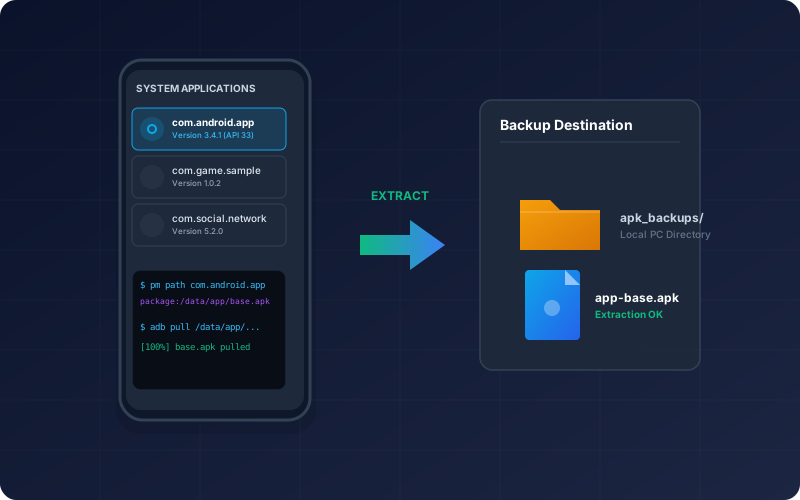
The Android Debug Bridge (ADB) is the most robust way to extract APKs directly to your computer. It requires no third-party apps on your phone and works for any app that isn't specifically encryption-protected by the manufacturer.
Step 1: Find the Package Name
Connect your phone with USB Debugging enabled, and run:
adb shell pm list packagesLook for the name that matches your app (e.g., com.instagram.android).
Step 2: Get the File Path
Once you have the name, find where the system is hiding the base binary:
adb shell pm path com.package.nameIt will return something like package:/data/app/~~.../base.apk.
Step 3: Pull the File
Simply copy that path and pull it to your desktop:
adb pull /data/app/~~.../base.apk MyBackup.apk3. Method 2: Using Third-Party APK Extractors (The Easy Path)
If you don't have a PC or find ADB commands intimidating, millions of users rely on dedicated extraction apps. They work by looking at the system's package list and copying the binary to your storage.
- ML Manager: A beautifully designed, open-source choice. It lists all apps (including system ones) and allows for a one-tap export.
- APK Extractor (by Meher): The most popular choice on the Play Store. Simple, fast, and lightweight.
Note: these apps often struggle with modern "Split APKs" (covered in section 4), so they may only extract the "Base" APK, leaving the app unusable on other devices.
4. The Challenge: Extracting Split APK Bundles
Most popular apps today are not a single base.apk. They are sets of splits (e.g., split_config.arm64_v8a.apk, split_config.xxhdpi.apk). To extract a "working" version from your phone, you must use a tool that supports Dynamic Export.
Our recommendation for this is **SAI (Split APKs Installer)**. Under its "Export" tab, SAI will detect every single APK piece that makes up the installed app and package them together into a single .apks file. You can then use our on-site XAPK to APK tool to re-merge these splits if you need a standard monolithic file.
5. Method 3: Extracting with Root Access
If you have root access (via Magisk or KernelSU), you can access the system partition directly. This is the only way to extract "Protected" apps or apps that prohibit their data from being backed up (via android:allowBackup="false").
Using a root file explorer (like Root Explorer or MixPlorer), navigate to:
/data/app/Each subdirectory here contains the code (APK) for your installed apps. You can copy the entire folder out to a safe location.
6. Method 4: Using the "Share" Feature (Limited)
On some Android skins (like Xiaomi's MIUI/HyperOS or Samsung's One UI), you can long-press an icon and click **Share**. The system will sometimes generate a temporary copy of the APK to send via Bluetooth or email.
However, be warned: this method is highly inconsistent. Many manufacturers only share a "Google Play Link" instead of the actual file. Use Method 2 or Method 1 for reliable results.
7. Security and Legal Considerations
While extracting an APK from your own device is generally considered "fair use" for backup purposes, there are clear lines you should not cross:
- No Redistribution of Paid Content: Sharing "Pro" versions or paid games is a violation of the Digital Millennium Copyright Act (DMCA) and developer terms of service.
- Scan for Hazards: If you are receiving an extracted APK from someone else, **always** verify its signature using our **APK Analyzer** to ensure no malware was injected during or after extraction.
- Terms of Service: Some apps (like banking or high-security enterprise tools) explicitly forbid extraction and analysis.
8. Frequently Asked Questions
Will extracting an app delete it from my phone?
No. Extraction is just a "Copy" operation. The original app remains installed and fully functional on your device.
Does extraction include my "Save Games" or "Login Data"?
No. You are only extracting the **application binary (the code)**. Private user data (passwords, local database, saves) is stored in a separate secured partition (/data/data/) that cannot be extracted without root access.
Can I extract system apps?
Yes. Using Method 1 (ADB) or Method 2 (Apps), you can extract apps like the Calculator, Camera, or even Google Play Services themselves.