Google Play Protect is often referred to as the "silent guardian" of the Android world. Built into almost every modern Android device via Google Play Services, it is arguably the most widespread mobile antivirus in existence. However, for users who choose to sideload apps or use third-party tools, Play Protect can also be a significant source of friction. Understanding why it flags certain APKs—and how to distinguish a generic "Untrusted Source" warning from a true "Critical Malware" alert—is essential for any power user. In this guide, we dive into the mechanics of Play Protect and how to manage its various security prompts.
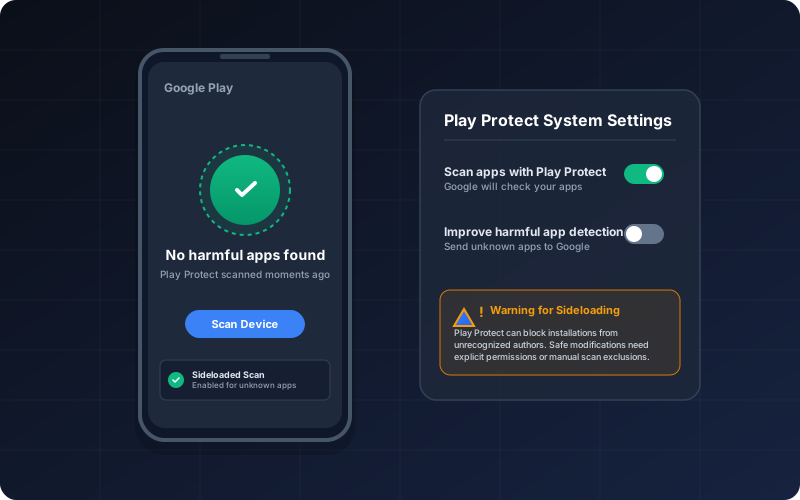
Inside the Mechanics
1. What is Google Play Protect?
Play Protect is more than just an offline scanner; it is a live cloud-connected security system. It provides three core layers of protection:
- Play Store Review: Every app uploaded to Google Play is analyzed for malware by a system called "Bouncer" before it ever reaches a user.
- On-Device Scanning: Your phone’s internal system periodically scans all installed applications, even if they were sideloaded, to check for malicious behavior that may have been activated after installation.
- Safe Browsing: It integrates with Google Chrome to warn you about dangerous websites and malicious file downloads before they reach your storage.
2. The Mechanics of PHB Detection
Google uses a classifier system to identify **Potentially Harmful Behavior** (PHB). This isn't just about looking for "bad code," but rather looking for "bad patterns."
- Signature Matching: It compares your APK’s certificate against a global database of known malicious developers and hashes.
- Static Analysis: The system looks for suspicious strings or API calls, such as an app trying to read your SMS messages or call premium numbers.
- Machine Learning Clusters: If an app is signed with a new, unknown key but its code is 98% identical to a known malware family, Play Protect will flag it as suspicious.
- Execution Analysis: Sometimes, the scanner will upload a "sample" of an unknown app to Google’s cloud sandbox to observe what happens when the code actually runs.
3. Unpacking the Alerts: From Warnings to Blocks
Not all Play Protect alerts are created equal. It's important to know the difference:
Alert Level 1: "Play Protect doesn't recognize this developer"
This is a low-level warning. It generally means the app is signed with a private key that hasn't established a "reputation" yet. Most hobbyist or newly created sideloaded apps will trigger this. **Status: Safe to ignore if you trust the source.**
Alert Level 2: "Unsafe App Blocked"
This is a more serious warning. It means Google has detected code patterns that are associated with phishing, data theft, or intrusive advertising. **Status: High risk; Proceed with extreme caution.**
Alert Level 3: "Harmful App Blocked" (Automatic Removal)
If Play Protect is 100% certain an app is dangerous malware, it will not just block the install—it may automatically uninstall the app from your device and notify you after the fact. **Status: Critical; Do not attempt to reinstall.**
4. Why Sideloaded Apps are Often Flagged
Most sideloaded apps are flagged not because they are "evil," but because they are "unknown."
- Missing Reputation: Google’s trust model is based on historical data. If a signature has only been seen on 10 devices globally, it is treated with suspicion.
- Re-signed Packages: Many third-party stores (including modding sites) decompile and re-sign APKs. This breaks the chain of trust from the original developer (e.g., Meta or Epic Games), which Play Protect sees as a potential tamper event.
- Custom Tools: One-off developer tools or internal corporate apps haven't been submitted for Google Play review, so the system defaults to "Unsafe" until proven otherwise.
5. How to Safely Manage and Bypass Blocks
If you have verified the integrity of your APK using our APK Analyzer and confirmed it’s safe, you can install a flagged app using these steps:
Method A: The "Install Anyway" Button
When the Play Store popup appears, don't just click "OK" (which cancels the install). Look for a small dropdown labeled "More details" or "Details". Inside that dropdown, you will see a link that says "Install anyway".
Method B: Temporary Disabling (Not Recommended)
If an app is being blocked before you even get to see the installer, you may need to temporarily toggle the scanner off:
- Open Play Store → Tap your Profile Icon.
- Tap **Play Protect** → Tap the **Settings** (Gear) icon.
- Toggle off "Scan apps with Play Protect."
- CRITICAL: Turn this back ON immediately after the app is installed. Leaving it off leaves your phone vulnerable to other passive threats.
6. Fixing Common Play Protect Issues
Sometimes the security system itself glitches. Here is how to fix it:
| Symptom | Fix |
|---|---|
| Blocked by Play Protect (Grey Install button) | Use Method A above (Details -> Install anyway). |
| "Something went wrong" during scan | Clear the cache of "Google Play Services" and "Google Play Store" in settings. |
| App removed automatically | The app was confirmed malware. Do not try to bypass; your account data may be at risk. |
7. Frequently Asked Questions (FAQ)
Can I whitelist a specific app?
No. Google does not allow users to permanently whitelist a specific sideloaded package. You must manually "Allow" the install each time you update or reinstall the app.
Does XapkTool bypass Play Protect?
No. Our tool processes the package content, but we never interfere with your system’s security layer. If Play Protect blocks an app you converted with us, it’s because the *original* code or the *newly re-signed* state of the content is being flagged by Google’s global database.
Is it safe to leave Play Protect off?
Absolutely not. Sideloading one known-safe app is fine, but leaving the door open for every other background process is a major security gamble.