Android is renowned for its customization options, but sometimes changing your launcher or icon pack isn't enough. What if you want to change the internal name of an app, replace its permanent icon, or adjust a specific color in its UI? This level of customization requires **APK Resource Modification**. Unlike modding an app's behavior (which requires Smali coding), modifying resources is much more accessible. In this professional tutorial, we walk you through the structural logic of Android resources and provide step-by-step guides for the most common visual modifications.
Inside the Tutorial
- Understanding APK Resources: The res/ and assets/ Folders
- The Modification Workflow: Decompile, Edit, Rebuild, Sign
- Tutorial 1: Changing an App's Name (strings.xml)
- Tutorial 2: Replacing App Icons (mipmap vs. drawable)
- Tutorial 3: Adjusting UI Colors (colors.xml)
- Essential: Why Re-signing is Mandatory
- Troubleshooting Resource Corruption Errors
- Frequently Asked Questions
1. Understanding APK Resources
An APK is more than just code. It is a package of resources designed to be swapped dynamically based on the device's state (language, screen size, dark mode). These are typically stored in two places:
- /res/ folder: Contains structured data like layouts (XML), images (PNG/WebP/SVG), and values (strings and colors). Files here are binary-compiled to save space and speed up the OS's reading process.
- /assets/ folder: Contains raw data files that the code reads directly. Examples include fonts (.ttf), deep configuration JSONs, or sound effects.
2. The Modification Workflow
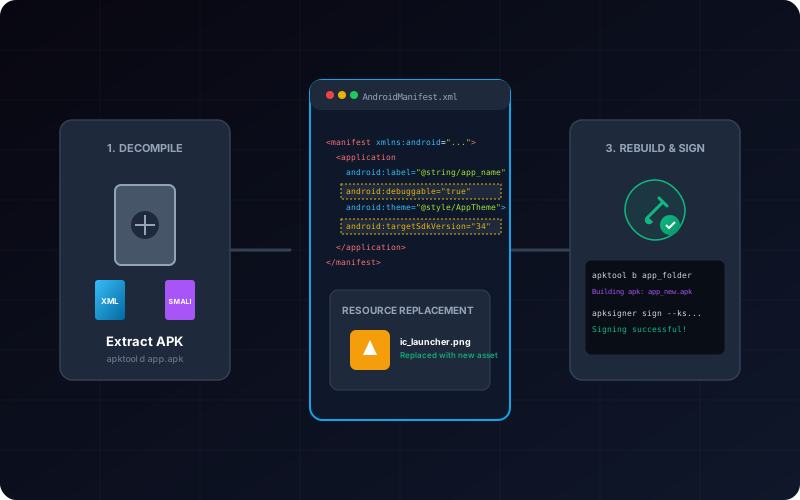
To modify an existing APK, you cannot just open the ZIP and change a file. You must follow the standard engineering workflow:
- Decompile: Convert binary AXML files back into human-readable XML. Use tools like **APK Editor** (Mobile) or **Apktool** (PC).
- Edit: Open the extracted files in a text editor or image editor. Perform your changes carefully.
- Rebuild: Re-pack the files into a new binary package.
- Sign: Verify the new binary with a new cryptographic signature. Without this step, Android will reject the install.
3. Tutorial 1: Changing an App's Name
App names are stored in "Values" files. They are indexed so that the name can change automatically if you swap your phone's language. To change it permanently:
- Open your tool (e.g., APK Editor) and select "Full Edit."
- Navigate to the **res/values/** directory.
- Open
strings.xml. - Search for a line like
<string name="app_name">Original Name</string>. - Change "Original Name" to your custom text.
- Save and re-build the APK.
4. Tutorial 2: Replacing App Icons
Android app icons are usually stored in multiple "Densities." You must replace the icon in all of them to ensure it looks sharp on all screens.
- After decompiling, look into **res/mipmap-xxxx/** or **res/drawable-xxxx/**.
- Identify the icon file. It is often named
ic_launcher.pngoricon.png. - Prepare your new icon as a square PNG file (suggested size: 512x512).
- Replace all instances of the original icon in every folder (hdpi, xxhdpi, etc.) with your new file, keeping the exactly matched filename.
5. Tutorial 3: Adjusting UI Colors
If an app doesn't have a dark mode, or its primary color clashes with your theme, you can often change it in the colors.xml file.
Navigate to **res/values/** and open colors.xml. Look for keys like primary_color or background_default. These are Hex codes (e.g., #FF0000 for red). Change them to your preferred hex code and rebuild.
6. Essential: Why Re-signing is Mandatory
As soon as you change a single pixel or a single letter in an APK, the Integrity Hash of the package changes. The original developer's signature will no longer match. To install the app, you must **re-sign** it. Our homepage features a professional **Sign APK** tool that can sign your newly created binary with a generic "Test" key or your own custom .jks file.
7. Troubleshooting Resource Errors
| Symptom | Fix |
|---|---|
| Resources not found (Crash on launch) | You likely renamed a file or deleted a resource ID that the code is still looking for. |
| Compilation Error: "Duplicate resource" | Ensure you haven't added two images with the same name in different subdirectories of the same density. |
| App installed but icon didn't change | Clear your Launcher's cache or restart your phone to force the OS to refresh the icon database. |
8. Frequently Asked Questions
Is it safe to modify resources of a banking app?
Absolutely not. Modifying resources of an app that handles sensitive data is dangerous. Re-signing the app breaks Play Protect's chain of trust, and the bank's internal security checks (like SafetyNet or Play Integrity) will likely detect the modification and block your account.
Does XapkTool handle resource modification?
Our online tool focuses on structural conversion (XAPK to APK) and signing. To perform deep resource editing, you should use specialized mobile tools like **MT Manager** or a desktop-level **Apktool** setup.
Are modification tools free?
Most basic editors are free. Professional tools like certain features in MT Manager require a subscription, but for simple icon and name changes, free versions are usually sufficient.