One of the most frustrating experiences in Android gaming is downloading a massive 2.5GB game, installing the APK, and only being met with a white screen or an error message that says "Download failed because you may not have purchased this app." This error is almost always caused by a missing or misplaced **OBB** (Opaque Binary Blob) file. In this guide, we will break down exactly what an OBB is, why it fails to install automatically, and how to manually place it to get your game running instantly.
In this guide
1. Understanding the OBB Format
OBB stands for Opaque Binary Blob. Google introduced this format as a way to handle the 100MB size limit for standard APK files on the Google Play Store. Large games like *Genshin Impact*, *Call of Duty Mobile*, and *Fortnite* house their high-resolution textures, audio tracks, and map data inside one or more OBB files.
An OBB file is essentially a renamed encrypted archive. It follows a very strict naming convention:
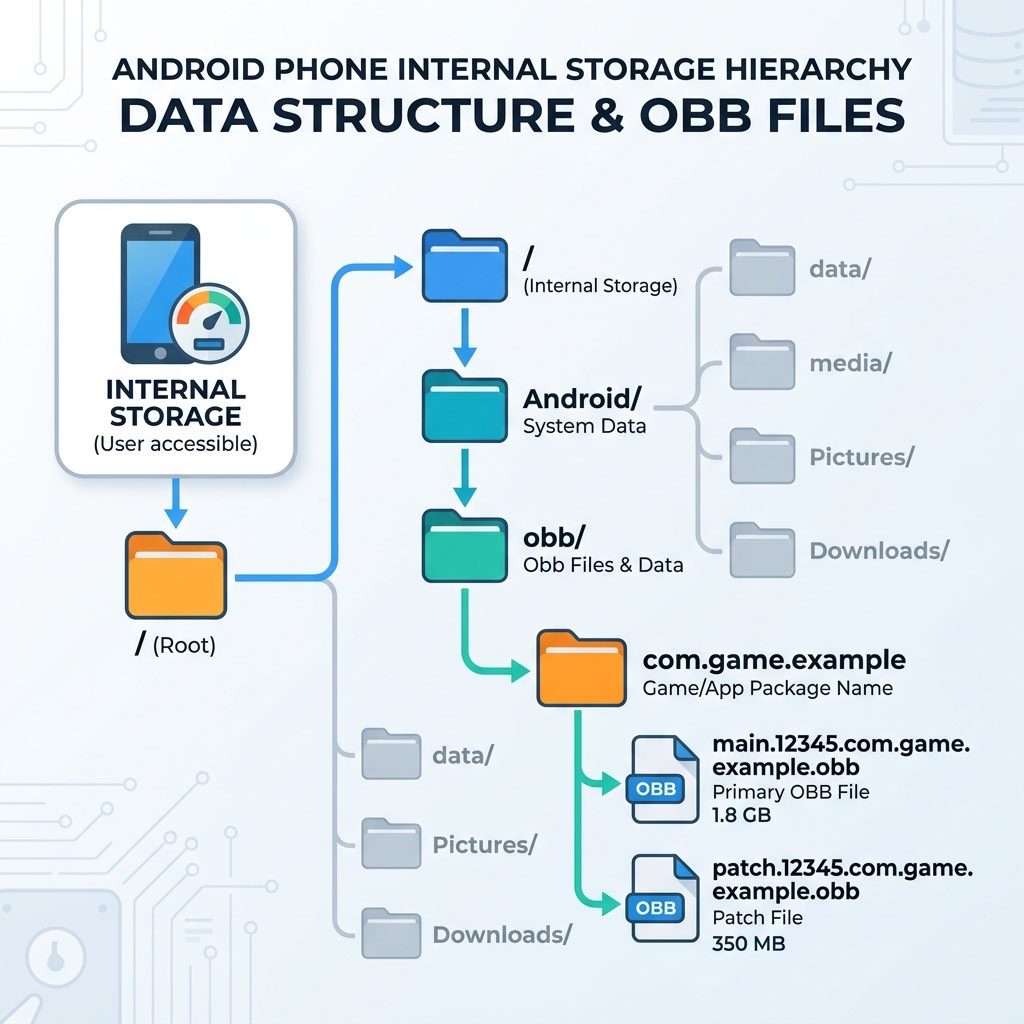
main. [version_code]. [package_name].obbFor example, if you are installing a game with package name `com.game.studio`, the OBB might be named `main.12345.com.game.studio.obb`. If the name doesn't match exactly, the game will ignore the file.
2. Why "OBB Not Found" Errors Occur
When you install an app from the Play Store, Google's server handles the placement of both the APK and OBB for you. However, when sideloading (installing from XAPK or manual folders), several things can go wrong:
- Incorrect Directory: The OBB file is sitting in the "Downloads" folder instead of the specific system game folder.
- Permission Gaps: The game has not been granted the "Manage All Files" or "Storage" permission to read external data.
- Version Mismatch: The APK's internal version code (e.g., 202) does not match the version code in the OBB filename (e.g., 201).
- Scoped Storage Restriction: Android 11 and newer hides the `/Android/obb/` folder from most file managers for privacy.
3. Manual OBB Installation: Step-by-Step Guide
If you have an APK and a separate OBB file (often found inside a ZIP or extracted from an XAPK), follow these steps to install it manually:
Step 1: Install the APK (But do not open it)
Install the standard APK file first. **Crucially**, do not click "Open" or "Launch" yet. If you open it, the game might create an empty folder that conflicts with your manual copy.
Step 2: Create the OBB Folder
Open a File Manager (like ZArchiver or the built-in system explorer) and navigate to:
/Internal Storage/Android/obb/Check if a folder with the **exactly matched** package name exists (e.g., `com.ea.game.pvz2_row`). If not, create a new folder with that exact package name.
Step 3: Move the File
Copy your `.obb` file and paste it into that package-specific folder. Your final path should look like this:
/Internal Storage/Android/obb/com.ea.game.pvz2_row/main.456.com.ea.game.pvz2_row.obbStep 4: Grant Permissions and Launch
Go to your phone settings → Apps → [Game Name] → Permissions and ensure Storage is enabled. Now you can launch the game.
4. Handling Android 11-14 Scoped Storage Obstacles
Starting with Android 11, the `/Android/data/` and `/Android/obb/` folders are restricted. If your file manager says "Access Denied," don't panic. You can still access them using these methods:
- ZArchiver: This specialized app can bypass these restrictions if you follow the on-screen "Use this folder" prompts.
- PC via USB: If you connect your phone to a Windows PC in "File Transfer" mode, you can see and manage the `/Android/obb/` folder with no restrictions. This is the most reliable "pro" method.
- Files by Google (Workaround): Search for the "Files" app (the one with the blue folder icon, not "Files by Google"), which often maintains system-level access.
5. Common Error Code Fixes
If you still face issues, look for these common numerical indicators:
| Symptom | Likely Cause | Recommended Fix |
|---|---|---|
| Download failed... purchased? | OBB is missing or in the wrong subfolder. | Check that the package folder name is exactly correct (lowercase, periods in place). |
| Black screen on launch | OBB version mismatch. | Verify both APK and OBB are from the same release bundle. |
| 0MB/0B File Size | Corruption during ZIP extraction. | Re-convert the XAPK using our **XAPK to APK** tool to ensure clean extraction. |
6. Frequently Asked Questions (FAQ)
Can I put OBB files on the SD Card?
Usually, no. Android expects OBB files to be in the internal storage path. While some older versions of Android (4.4 - 6.0) allowed "Preferred Install Location," modern Scoped Storage requires them to be in primary internal memory.
Does XAPK conversion solve OBB issues?
Yes. When you use our tool, we detect if an OBB is present and package it into the final output or provide instructions for the split installer. This eliminates the need for most of the manual steps above.
Is it safe to download OBB files manually?
Yes, provided you trust the source. Unlike APK codes, OBB data is mostly assets. However, always verify that the companion APK is signed correctly using our **APK Analyzer** first.